Home Wi-Fi Troubleshooting That Solves Real Problems
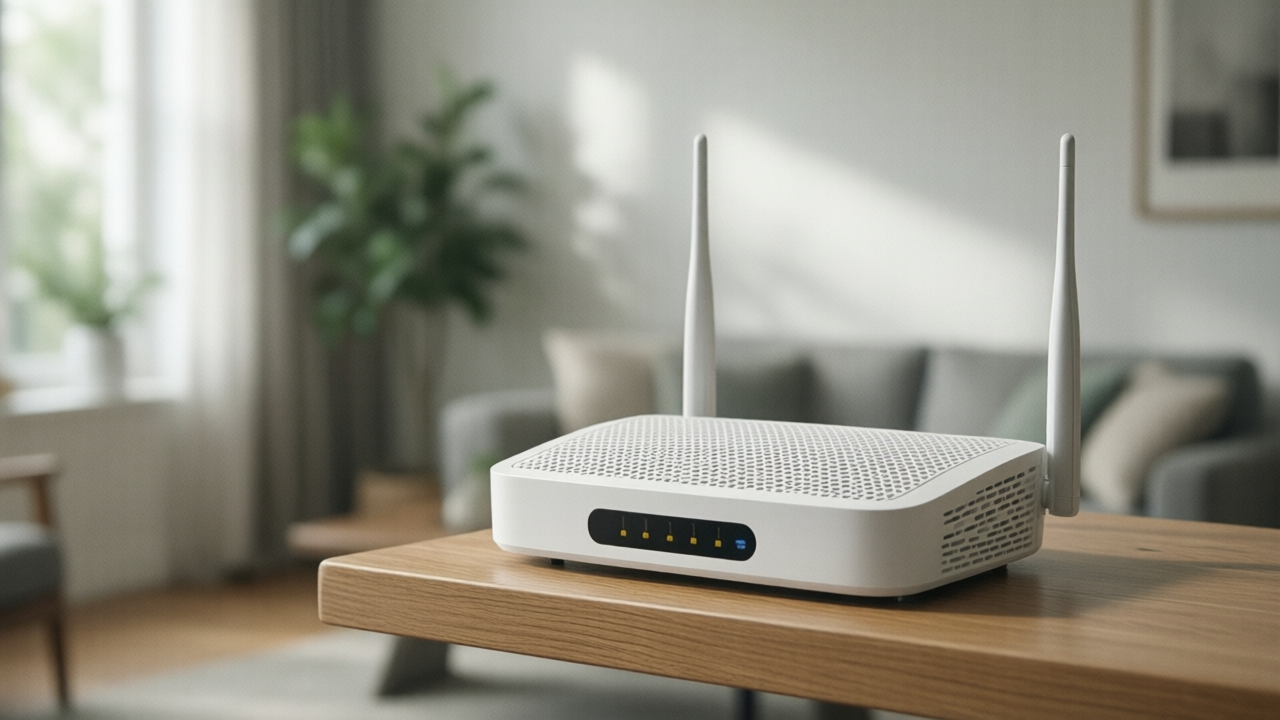
Most home Wi-Fi complaints trace to a handful of causes, and almost none of them are fixed by buying a faster internet plan.
Separate the two possible problems
Speed and coverage are different failures with different fixes.
Run a speed test with a device connected directly to the router by cable, or standing next to it. If those numbers roughly match what you pay for, your internet service is fine and the problem is the wireless network inside the house. Upgrading the plan will change nothing.
Placement does most of the work
Routers are frequently installed wherever the cable enters the house, which is often a corner, a basement, or a closet. All three are poor.
- Central and elevated is the goal. Radio signal spreads outward and downward, so a high shelf near the middle of the house covers far better than a floor-level corner.
- Away from obstructions. Masonry, metal, and water absorb signal strongly. A router behind a television, inside a media cabinet, or next to a large aquarium is handicapped.
- Away from interference. Microwaves, cordless phones, and baby monitors operate in overlapping frequencies.
Moving a router across a room frequently accomplishes more than replacing it.
Understand the bands
Modern routers broadcast on multiple frequency bands with different characteristics.
- 2.4 GHz travels further and penetrates walls better, but is slower and heavily congested, since many household devices share it.
- 5 GHz is considerably faster with less congestion, but has shorter range and handles walls poorly.
- 6 GHz, on newer equipment, offers more capacity and very little congestion, with range similar to or shorter than 5 GHz.
Many routers combine these under one network name and steer devices automatically. When a specific device behaves poorly, separating the bands into distinct network names and manually assigning that device can resolve it.
Channel congestion in dense housing
In apartments and dense neighborhoods, dozens of networks may compete for the same channels. Most routers select channels automatically, but they do not always choose well and rarely revisit the decision.
A Wi-Fi analyzer app shows which channels neighbors occupy. On 2.4 GHz, only channels 1, 6, and 11 avoid overlapping, so choosing the least crowded of those three is the practical option. On 5 GHz there are far more non-overlapping channels and congestion is usually less severe.
Routine fixes worth trying first
- Restart the router and modem. Genuinely resolves a wide range of intermittent problems.
- Update firmware. Frequently fixes performance and security issues, and many routers do not update automatically.
- Reduce connected devices. Older devices can slow a network disproportionately by occupying airtime.
- Check for bandwidth consumers. A single device syncing a large backup or streaming at high bitrate can dominate the connection.
When a mesh system helps
A mesh system uses multiple units to blanket a larger area, and it genuinely solves coverage problems in larger homes, multi-story houses, and buildings with dense walls.
It does not fix a slow internet connection, and it is not the right answer for a small apartment where a single well-placed router is sufficient. Mesh units also perform meaningfully better with a wired connection between them where that is possible, since a wireless backhaul consumes capacity.
Wire what you can
Wireless is a convenience, not an improvement. Anything stationary that moves significant data benefits from a cable: desktop computers, game consoles, televisions used for streaming, and any network storage. Each wired device also frees wireless capacity for everything else.
Powerline adapters or coaxial network adapters are workable alternatives where running cable is impractical.
Basic security while you are in there
- Change the default administrator password, which is distinct from the Wi-Fi password.
- Use WPA3 encryption where available, or WPA2 at minimum, and never leave a network open.
- Disable remote administration unless you specifically need it.
- Set up a guest network for visitors and smart home devices, keeping them separate from computers and phones holding personal data.
Article Was Generated By AI.